

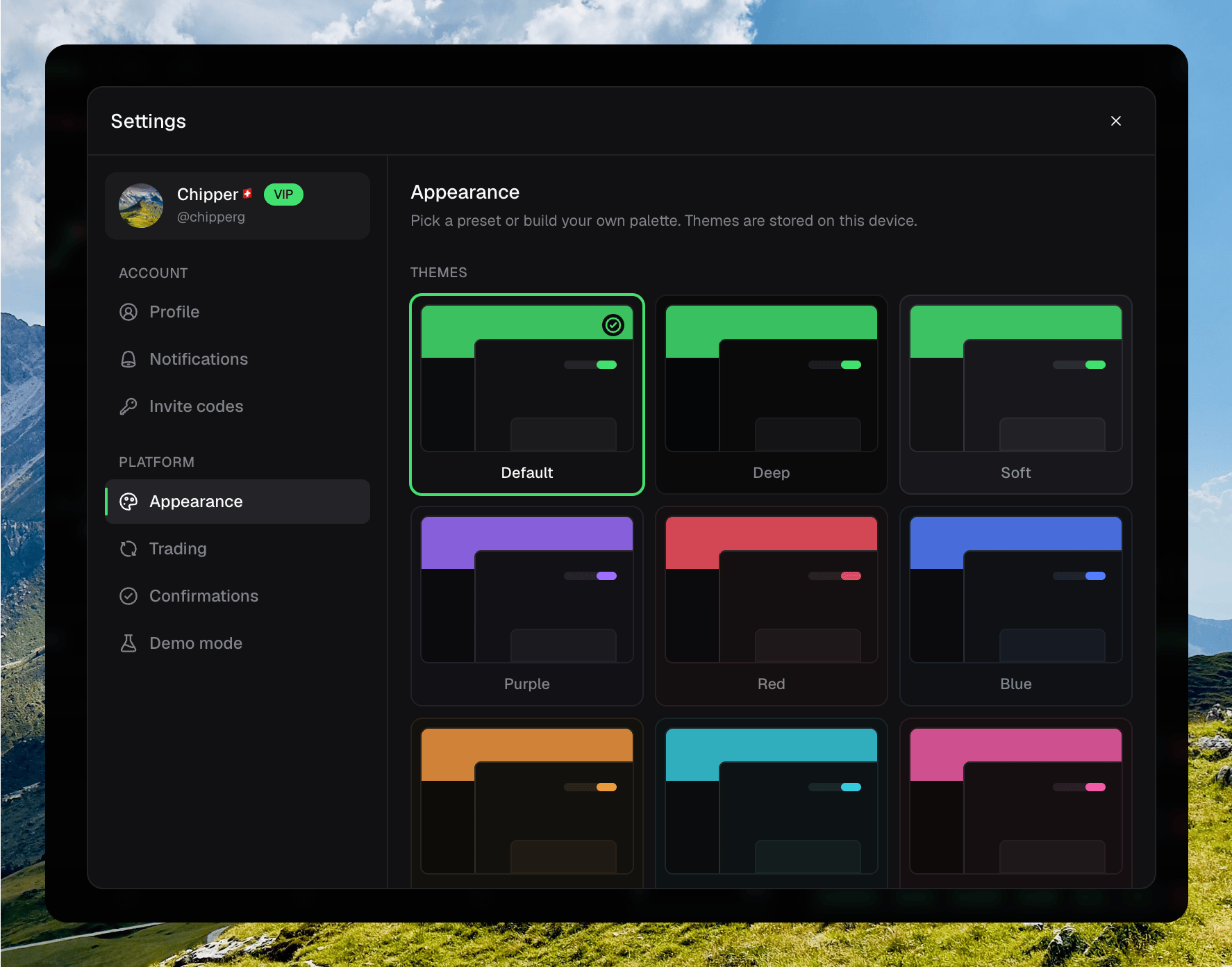
Settings → Appearance theme presets
Your theme and custom colors stay on this device. They do not sync to your account.
Preset themes
Chipper includes nine preset themes.
The color presets keep increase and decrease colors consistent. This makes trading signals recognizable when you switch themes.
Custom themes
You get three custom slots: Custom 1, Custom 2, and Custom 3. Each slot stores a separate palette.1
Select a custom slot
Click Custom 1, Custom 2, or Custom 3 in the theme grid.
2
Choose your colors
Click a color swatch to use the picker, or enter a six-digit hex color.
3
Review the app
Changes apply immediately across the interface and token chart.
Interface colors
- Accent controls primary actions, selected states, and focus rings.
- Background controls the main app surface.
- Panels controls cards, dialogs, and popovers.
- Raised surfaces controls muted and elevated controls.
- Borders controls separators and outlines.
Text colors
- Primary controls the strongest text.
- Secondary controls supporting text.
- Muted controls low-emphasis labels and descriptions.
Trading colors
- Increase and Decrease control positive and negative values.
- Candle up and Candle down control token-chart candles and related chart marks.