

Opening a token: header, chart, bottom tabs, switcher, and trade sidebar
Header
The header shows the token image, ticker, name, age, and quote pair. Click the ticker to copy the contract, or press C. Socials appear when the token has them: Search on X, Website, Telegram, and X.
Holder concentration sits on the right: Top 10, Snipers, Insiders, and Dev, each as a percent of supply.
Share PnL opens a card for this token. See PnL.

The token header with ticker, market cap, price, liquidity, supply, and holder percents
Chart
The chart is candles with a volume overlay. The default interval is 5 minutes. Toggle Market Cap and Price to change the Y-axis. Bubbles turns trade marks on or off. That setting stays on this device, and defaults to on.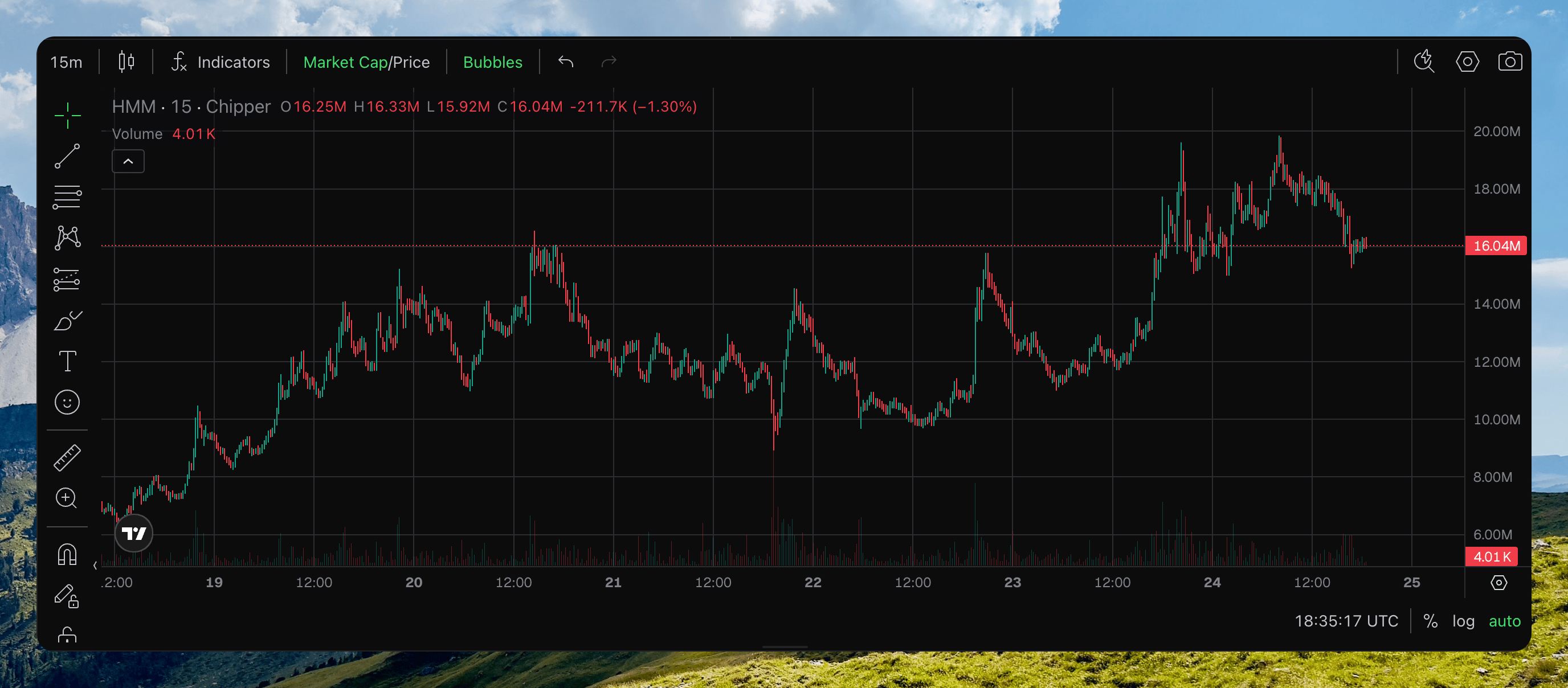
The candle chart with Market Cap / Price and Bubbles in the toolbar
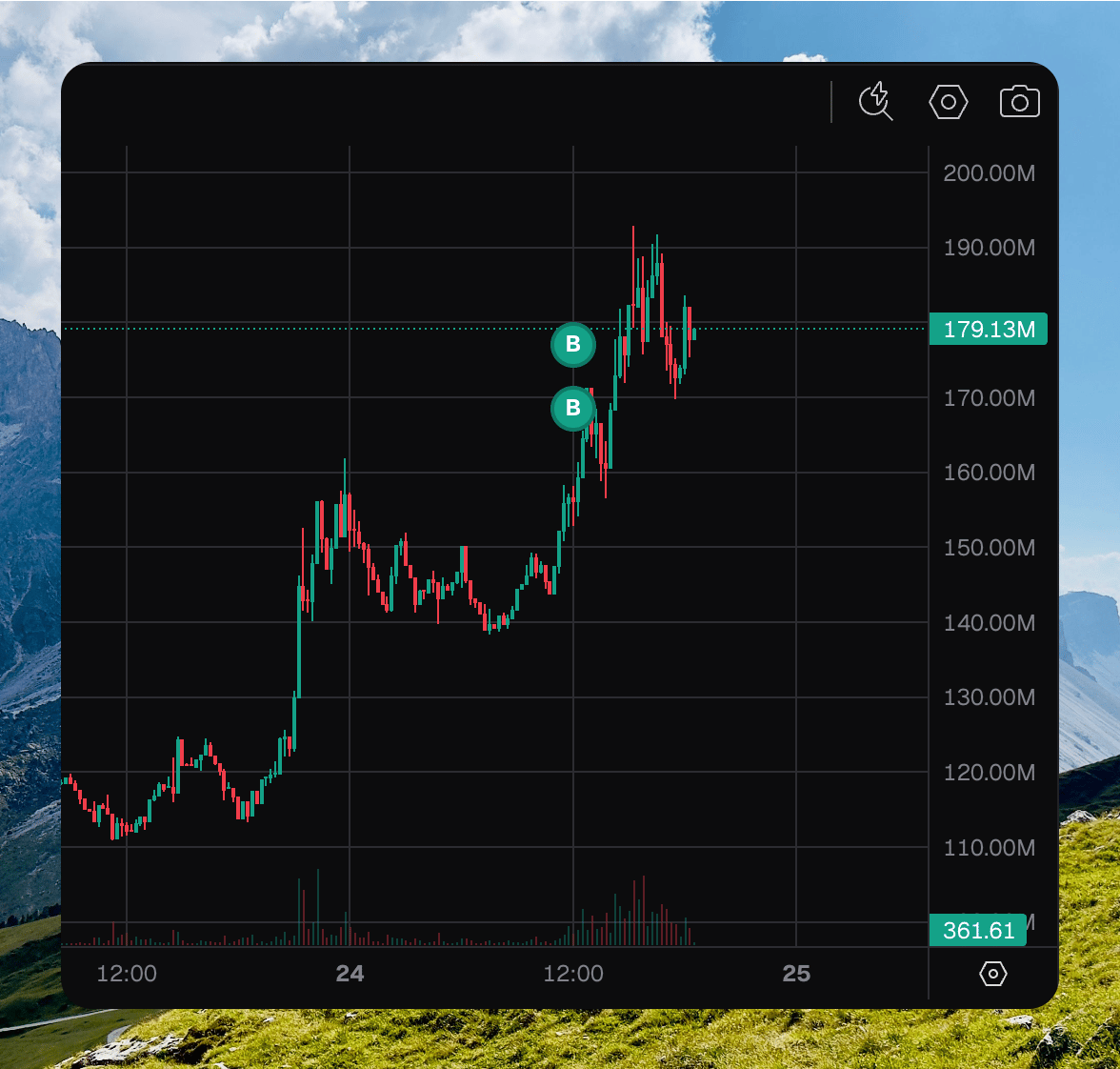
The chart with trade bubbles visible
A chart bubble is a trade. Holder distribution is a different map, and is not this overlay.
Trades
Trades is the default bottom tab. The feed pauses while you hover a row. By default the table shows Buy and Sell only. Open the Type filter to add Pool Create and Liq Add / Remove.
Hover a trader you do not own for their PnL, buy and sell counts, and average prices.
Press T to show this tab.
Holders
Holders lists the top 100 holders. Your wallets sort to the top.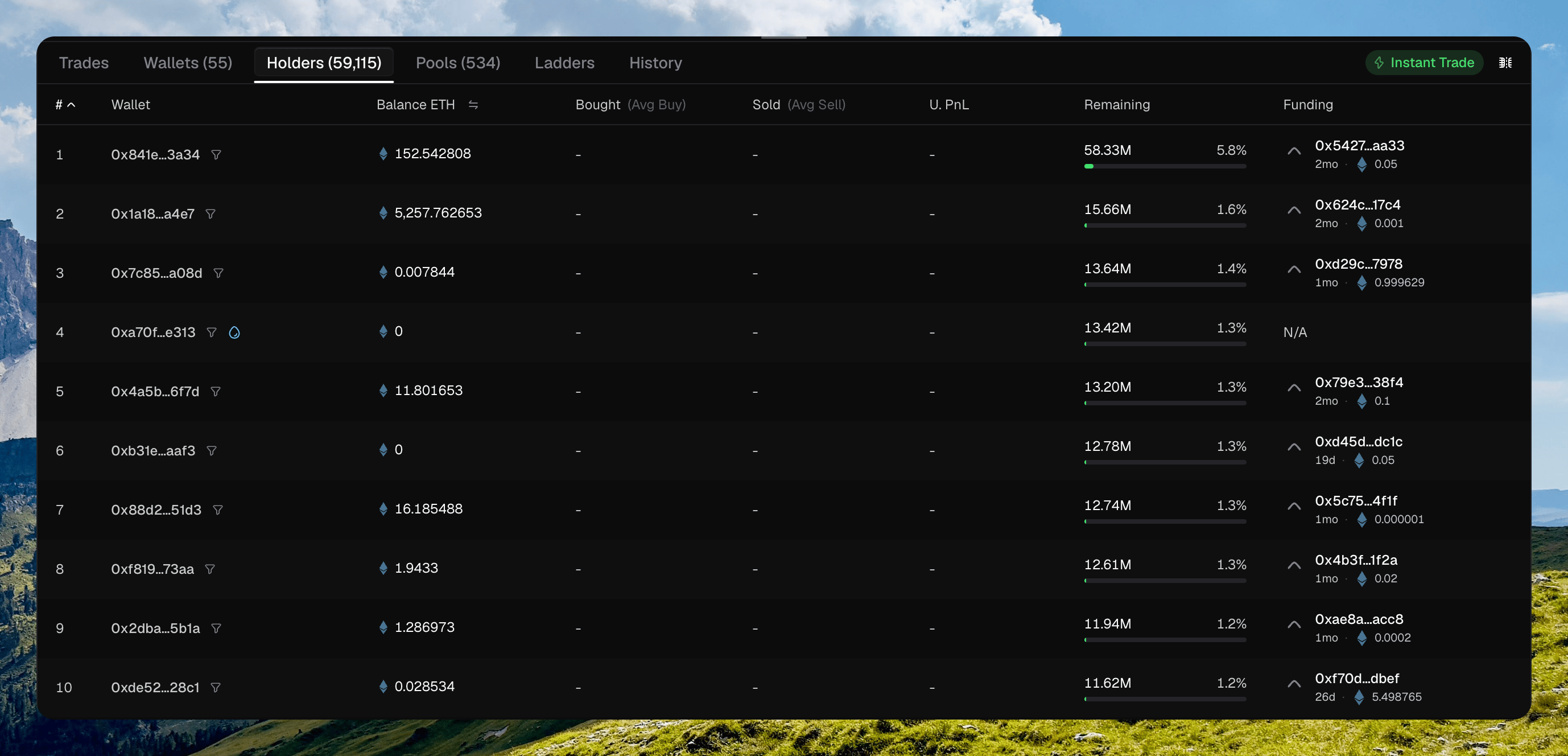
The Holders tab with rank, remaining, and Funding
Pools
Pools lists every pool Chipper knows for this token. Click a row to switch the page onto that pool. The URL becomes?pool=.
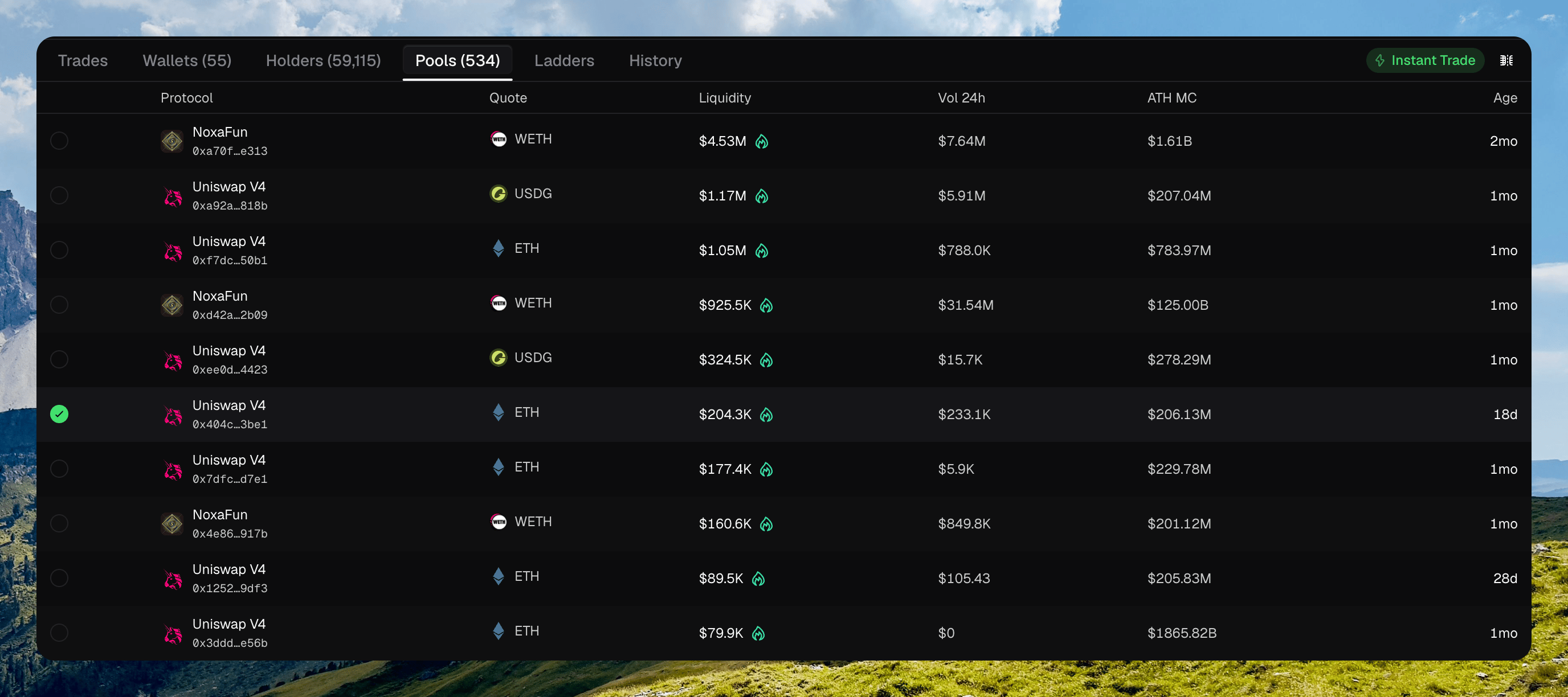
The Pools tab with protocol, quote, liquidity, and a selected row
Wallets panel
Wallets lists the wallets attached to this token. This is where quick-trade chips live. The toolbar has Actions, Wallets (add), Instant Trade, Pop out wallets, and Split View.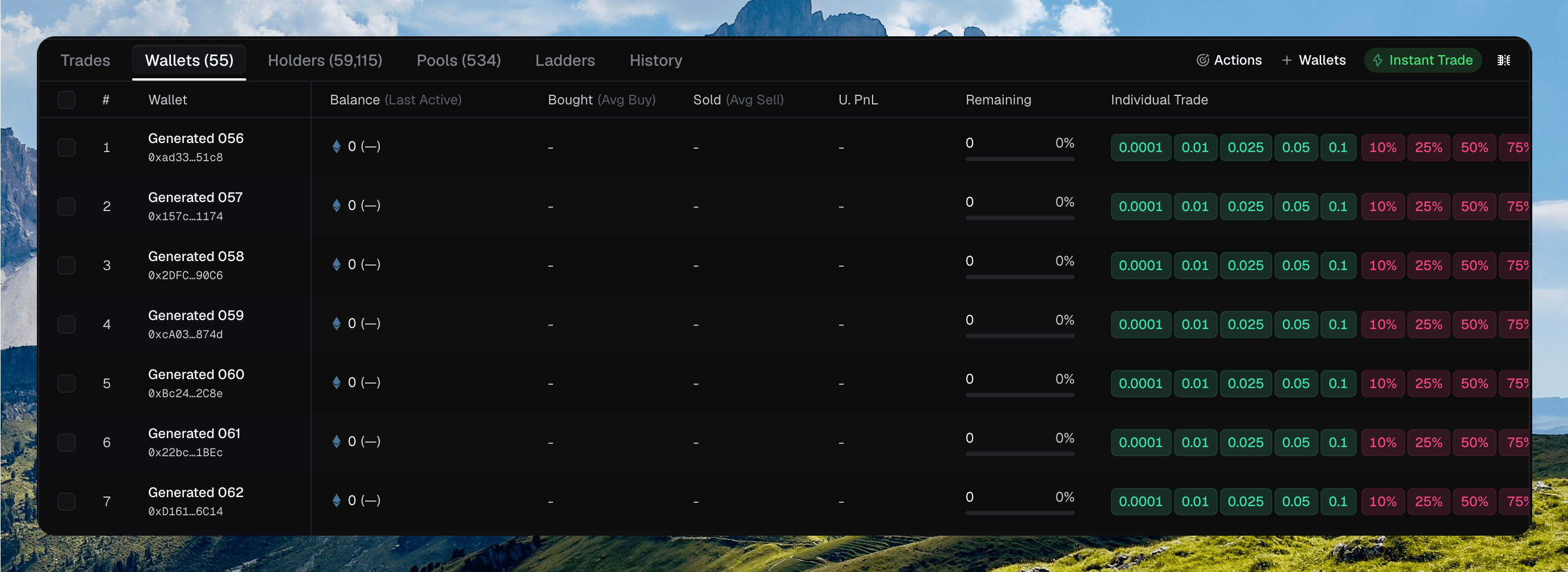
The Wallets tab with attached wallets, Instant Trade, and Individual Trade chips
Pop out wallets
Click the square-with-up-right-arrow button after Instant Trade to open the Wallets panel in a separate window. Move that window to a second monitor to keep wallet management visible while you use the full token page elsewhere.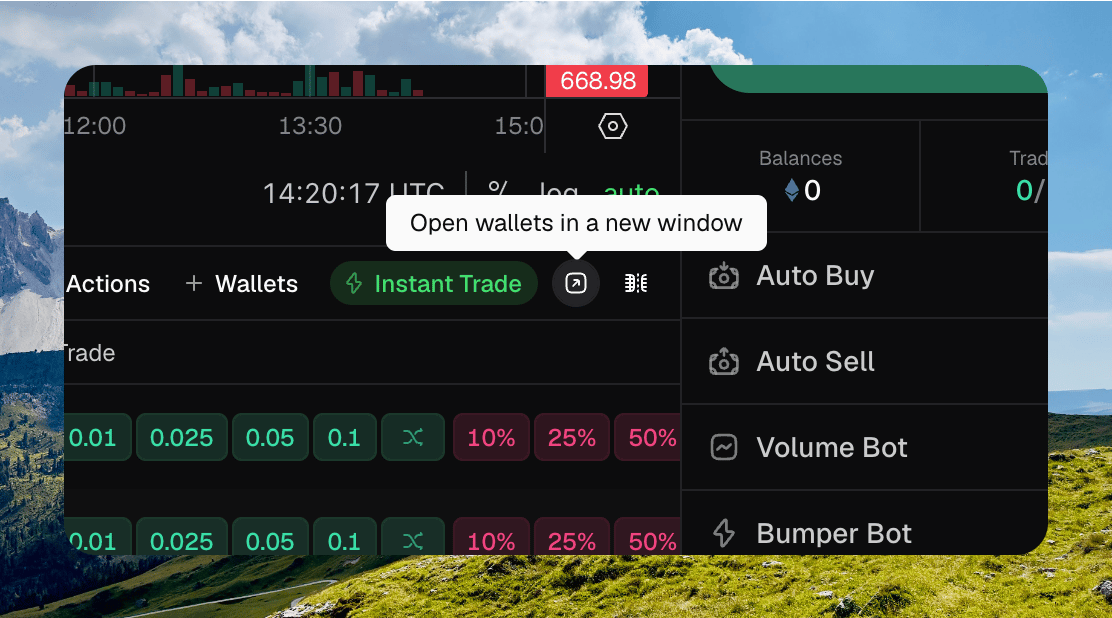
The Pop out wallets button after Instant Trade
History
History is your activity on this token: buys, sells, transfers, launches, creator fees, automations, and more. Filter chips sit above the table: All, Buys, Sells, Transfers, Launches, Creator fees, and the rest.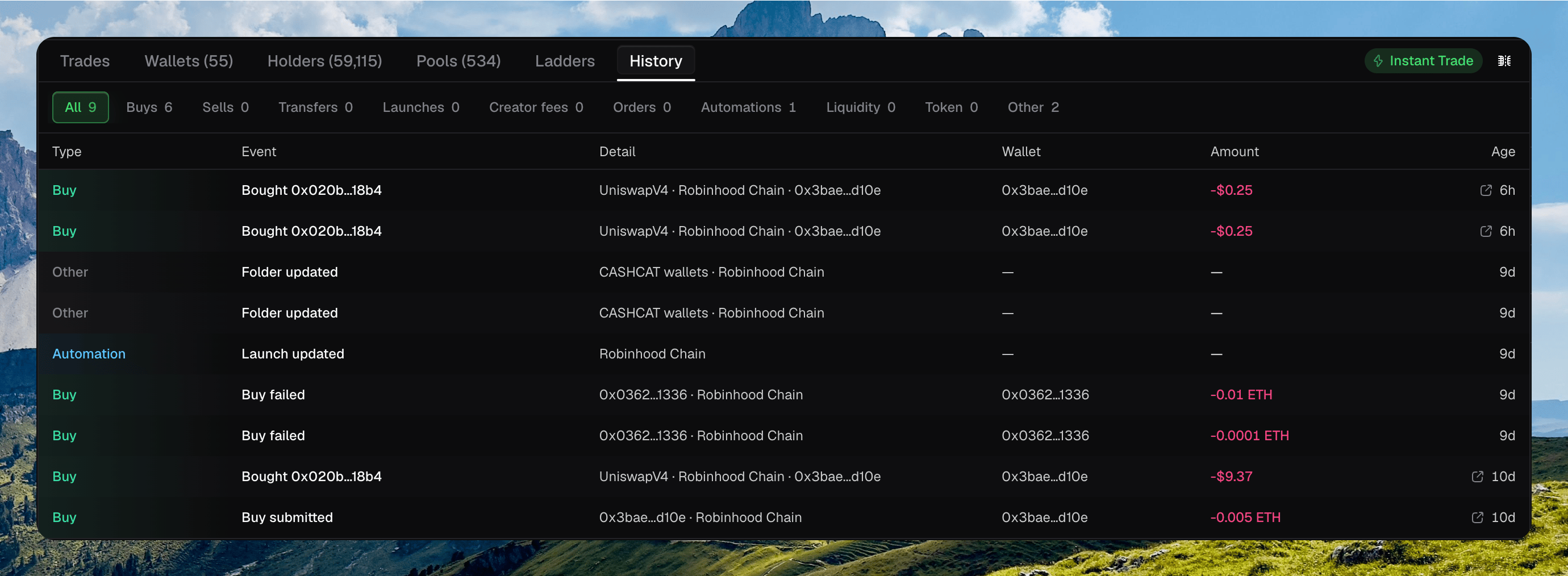
The History tab with filter chips and Type, Event, Wallet, Amount, and Age
Token switcher
The left rail lists your token dashboards so you can move without going back to Tokens. It stays empty until you add a wallet on a token page. It starts collapsed. Click the chevron, or press ⌘ B, to expand it. Press [ and ] for the previous and next token. Each row shows ticker, name, market cap, and 24h change. Right-click for Copy address, Open explorer, and Archive. Live and Archived switch the list. Create token starts a launch.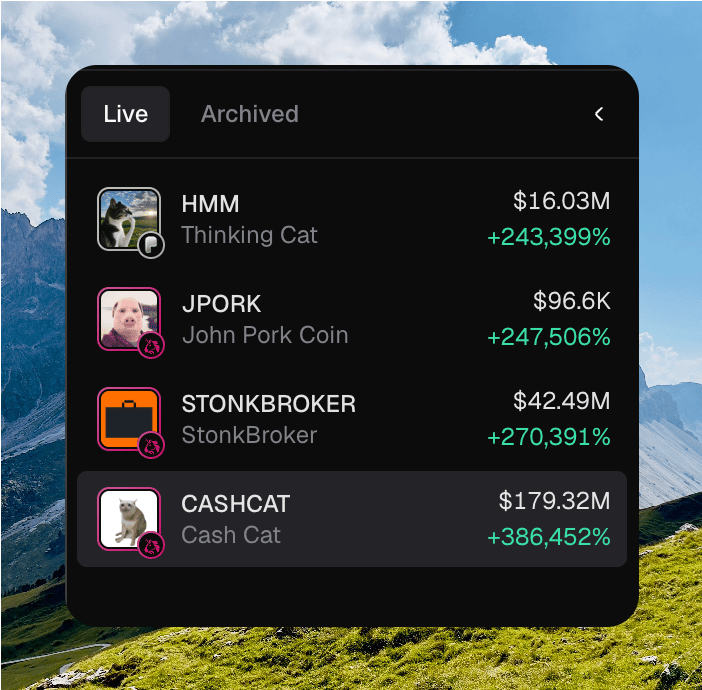
The expanded token switcher with Live tokens, mcap, and 24h change
Where to go next
Trade Sidebar
Place a buy or sell.
Quick Trade
Buy and sell from a wallet row.
Automations
Attach a strategy to this token.
PnL
Sidebar PnL, U. PnL, and Share PnL.