

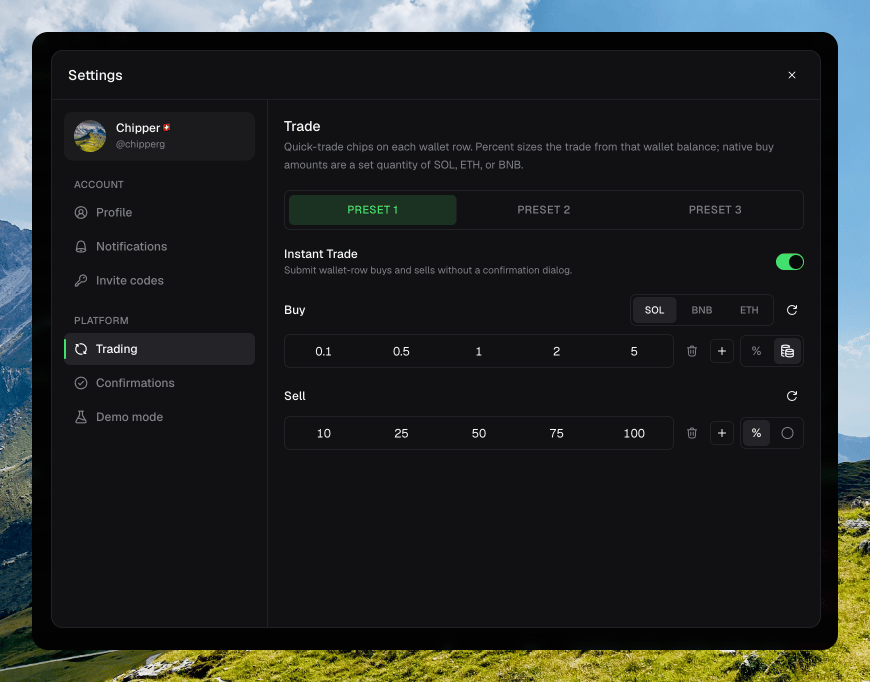
Settings → Trading: Instant Trade and amount chips
Amount presets
You get three slots: Preset 1, Preset 2, and Preset 3. The active slot is the one quick-trade chips and the trade sidebar use. Each side has one to eight chips. Add a value, Remove the last one, or Reset that side.Switching trading presets from the footer chip
Amount mode
Each side has a % toggle and a fixed toggle.- % sizes from that wallet’s balance.
- The coin icon is a native currency amount on buy, or a fixed token amount on sell.
Instant Trade
Instant Trade submits wallet-row buys and sells without a confirmation dialog. Turn it off to get Confirm buy and Confirm sell back. This setting stays on this device.Confirmations
Other skippable dialogs live under Settings → Confirmations. Those are also stored on this device.- Skip developer wallet confirm
- Skip unattach confirm
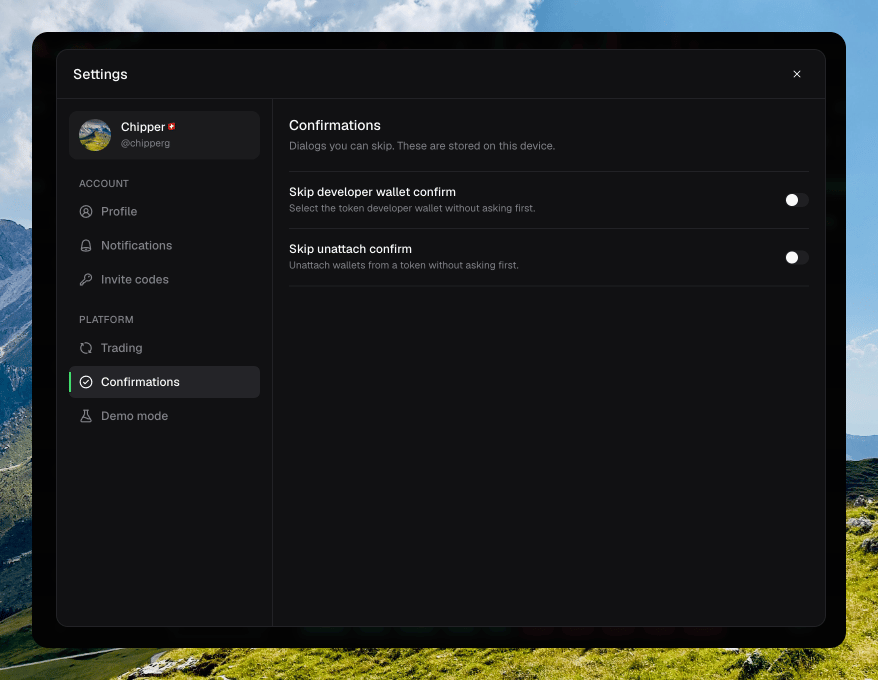
Settings → Confirmations with Skip developer wallet confirm and Skip unattach confirm