> ## Documentation Index
> Fetch the complete documentation index at: https://docs.chipperg.xyz/llms.txt
> Use this file to discover all available pages before exploring further.
# Token Page
> Everything you can see and do on one token.
The token page is the workspace for one token. Open it from [Tokens](/trading/tokens), [Overview](/platform/overview), [Search](/platform/search), or a wallet holding.
Until you add a wallet to this token and pool, the page is view-only. Chipper does not add it to Tokens. The first wallet you attach creates the token dashboard and pins it to the list.
The layout is the [token switcher](#token-switcher) on the left, header and chart in the center, and the [trade sidebar](/trading/trade-sidebar) on the right.
## Header
The header shows the token image, ticker, name, age, and quote pair. Click the ticker to copy the contract, or press **C**.
Socials appear when the token has them: **Search on X**, **Website**, **Telegram**, and **X**.
| Stat | What it shows |
| ---------------- | -------------------------------------- |
| *(large number)* | Market cap |
| **Price** | Price in USD |
| **Liquidity** | Liquidity in USD |
| **Supply** | Token supply |
| **Fees Paid** | Fees paid, in the chain's native token |
Holder concentration sits on the right: **Top 10**, **Snipers**, **Insiders**, and **Dev**, each as a percent of supply.
**Share PnL** opens a card for this token. See [PnL](/trading/pnl).
 ## Chart
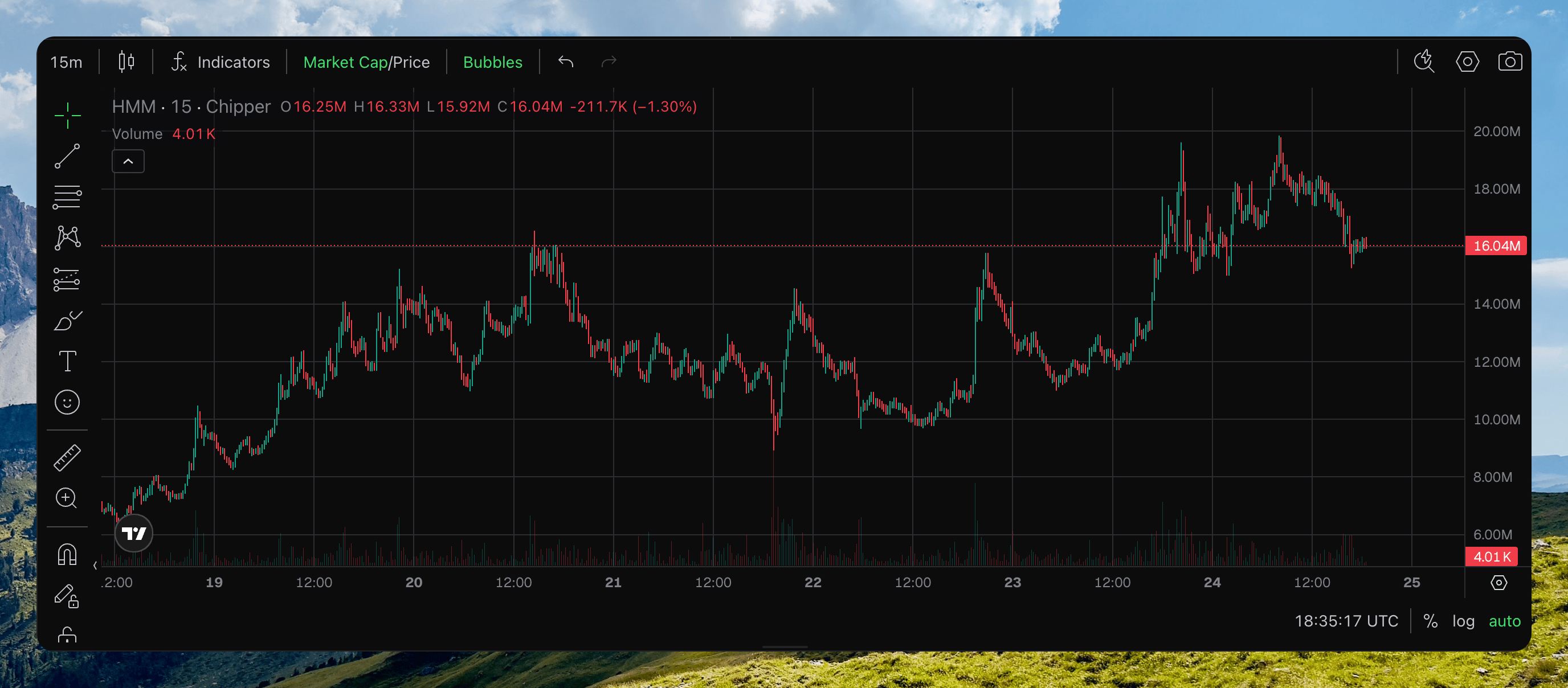
The chart is candles with a volume overlay. The default interval is **5** minutes.
Toggle **Market Cap** and **Price** to change the Y-axis. **Bubbles** turns trade marks on or off. That setting stays on this device, and defaults to on.
## Chart
The chart is candles with a volume overlay. The default interval is **5** minutes.
Toggle **Market Cap** and **Price** to change the Y-axis. **Bubbles** turns trade marks on or off. That setting stays on this device, and defaults to on.
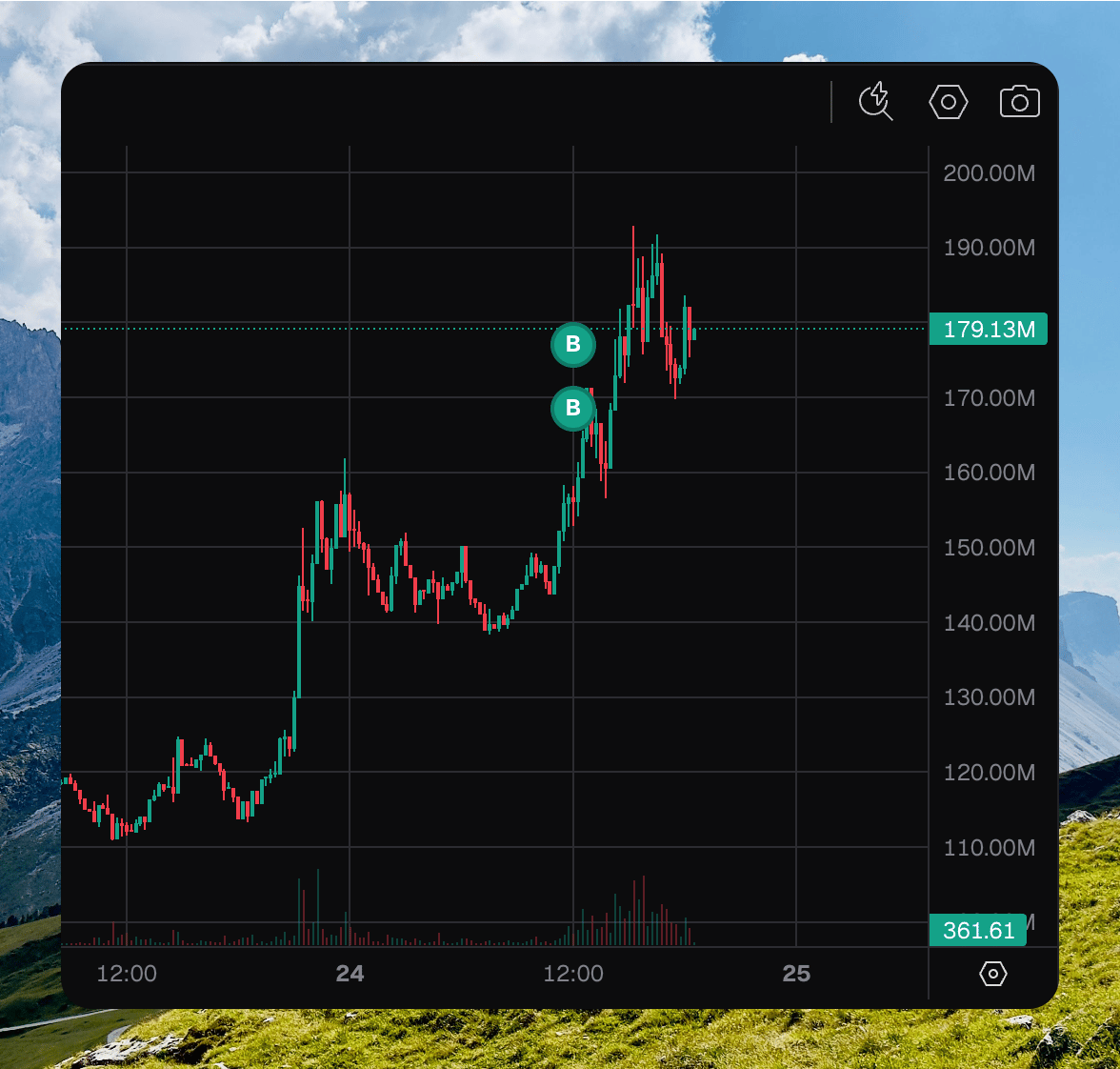
 A **chart bubble** is one trade, not a holder. Tagged fills show a short code such as **DB** (dev buy) or **SS** (sniper sell). Your wallets show as **You**. Hover a mark for the size and USD.
 Drag the bar under the chart to resize it.
A chart bubble is a trade. Holder distribution is a different map, and is not this overlay.
## Trades
**Trades** is the default bottom tab. The feed pauses while you hover a row.
By default the table shows **Buy** and **Sell** only. Open the **Type** filter to add **Pool Create** and **Liq Add / Remove**.
| Column | What it shows |
| ------------------ | ---------------------------------------------------------------------------- |
| **Age** | How long ago the transaction landed. Click to sort. |
| **Type** | **Buy**, **Sell**, **Pool Create**, **Liq Add**, or **Liq Remove**. |
| **MC** / **Price** | Market cap or price. Click the header to switch. |
| **Amount** | Tokens traded. Liquidity rows show both sides of the pair. |
| **Total** | Native or USD. Click the header to switch. |
| **Trader** | The address. Copy it, open the explorer, or filter the table to that trader. |
Hover a trader you do not own for their **PnL**, buy and sell counts, and average prices.
Press **T** to show this tab.
## Holders
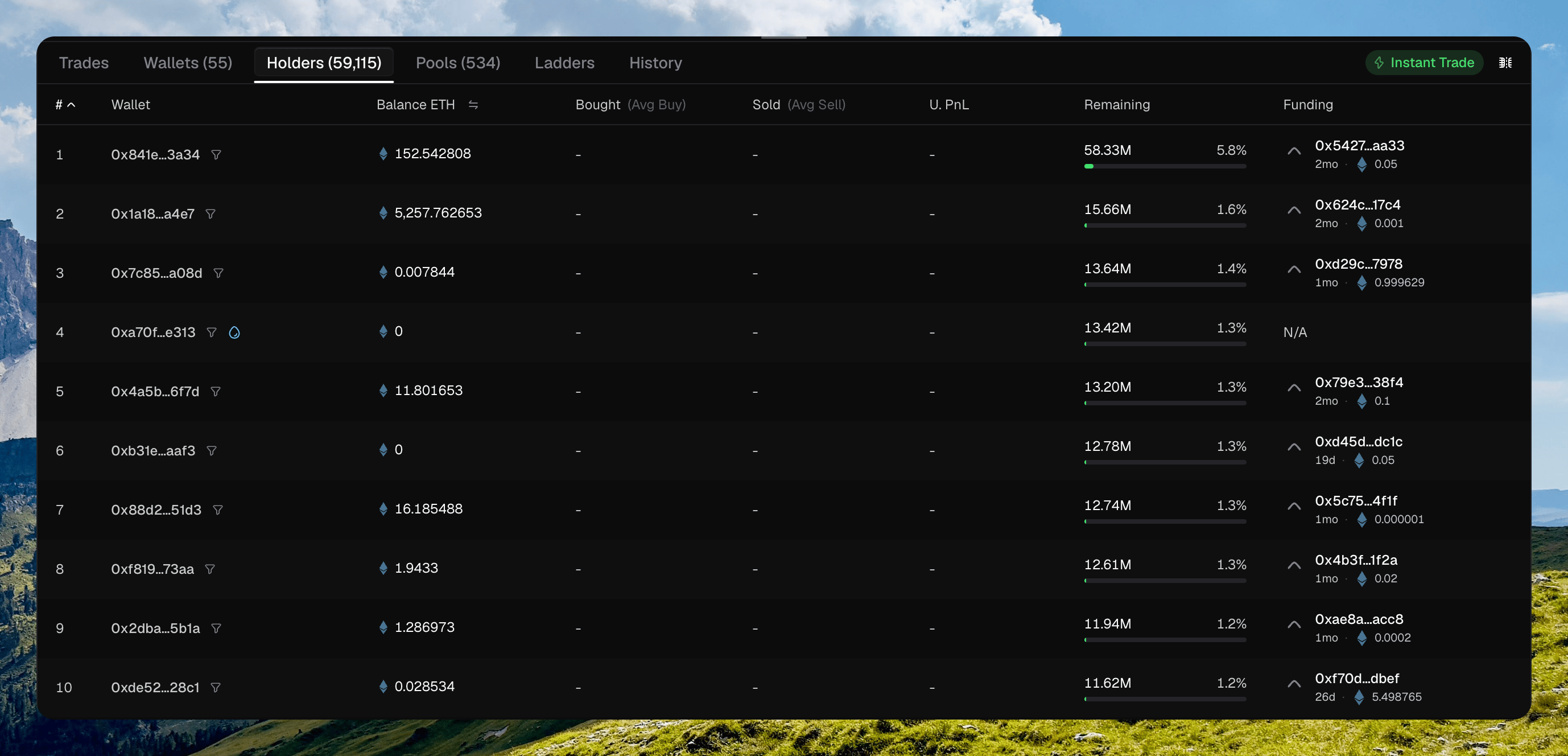
**Holders** lists the top 100 holders. Your wallets sort to the top.
| Column | What it shows |
| ------------- | --------------------------------------------------------------------------------------- |
| **#** | Rank. |
| **Wallet** | Address, **Dev** badge, and up to two tags such as **Sniper**, **Pro**, or **Insider**. |
| **Balance** | USD or native. Click the header to switch. |
| **Bought** | Bought USD and average buy. |
| **Sold** | Sold USD and average sell. |
| **U. PnL** | Unrealized profit and loss. |
| **Remaining** | Tokens left, and percent of supply. |
| **Funding** | Who funded the wallet, or **N/A**. |
Drag the bar under the chart to resize it.
A chart bubble is a trade. Holder distribution is a different map, and is not this overlay.
## Trades
**Trades** is the default bottom tab. The feed pauses while you hover a row.
By default the table shows **Buy** and **Sell** only. Open the **Type** filter to add **Pool Create** and **Liq Add / Remove**.
| Column | What it shows |
| ------------------ | ---------------------------------------------------------------------------- |
| **Age** | How long ago the transaction landed. Click to sort. |
| **Type** | **Buy**, **Sell**, **Pool Create**, **Liq Add**, or **Liq Remove**. |
| **MC** / **Price** | Market cap or price. Click the header to switch. |
| **Amount** | Tokens traded. Liquidity rows show both sides of the pair. |
| **Total** | Native or USD. Click the header to switch. |
| **Trader** | The address. Copy it, open the explorer, or filter the table to that trader. |
Hover a trader you do not own for their **PnL**, buy and sell counts, and average prices.
Press **T** to show this tab.
## Holders
**Holders** lists the top 100 holders. Your wallets sort to the top.
| Column | What it shows |
| ------------- | --------------------------------------------------------------------------------------- |
| **#** | Rank. |
| **Wallet** | Address, **Dev** badge, and up to two tags such as **Sniper**, **Pro**, or **Insider**. |
| **Balance** | USD or native. Click the header to switch. |
| **Bought** | Bought USD and average buy. |
| **Sold** | Sold USD and average sell. |
| **U. PnL** | Unrealized profit and loss. |
| **Remaining** | Tokens left, and percent of supply. |
| **Funding** | Who funded the wallet, or **N/A**. |
 ## Pools
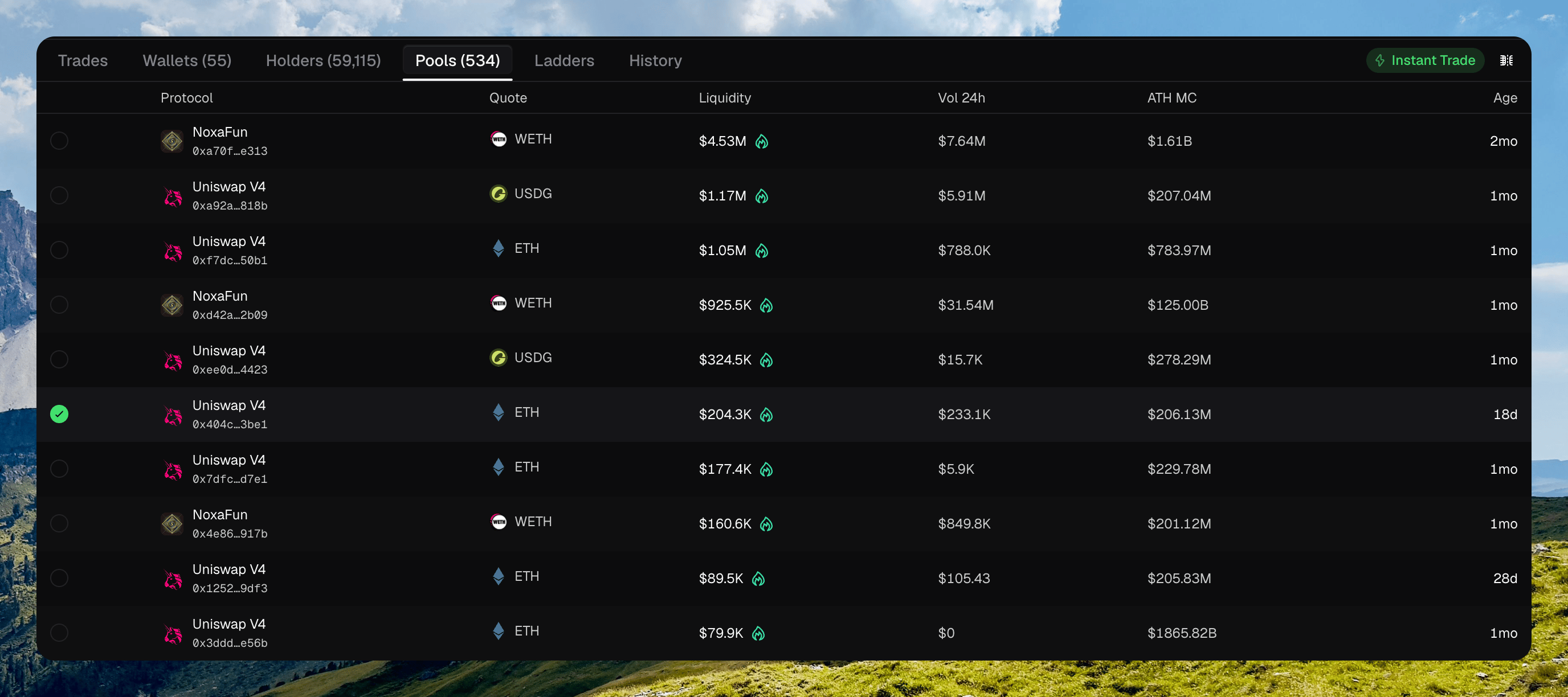
**Pools** lists every pool Chipper knows for this token. Click a row to switch the page onto that pool. The URL becomes `?pool=`.
| Column | What it shows |
| ------------- | ----------------------------------------------------------- |
| **Protocol** | Venue name, plus the pool address. |
| **Quote** | Quote token. |
| **Liquidity** | Liquidity in USD. Solana rows can show burned or locked LP. |
| **Vol 24h** | 24h volume. |
| **ATH MC** | All-time high market cap. |
| **Age** | How old the pool is. |
## Pools
**Pools** lists every pool Chipper knows for this token. Click a row to switch the page onto that pool. The URL becomes `?pool=`.
| Column | What it shows |
| ------------- | ----------------------------------------------------------- |
| **Protocol** | Venue name, plus the pool address. |
| **Quote** | Quote token. |
| **Liquidity** | Liquidity in USD. Solana rows can show burned or locked LP. |
| **Vol 24h** | 24h volume. |
| **ATH MC** | All-time high market cap. |
| **Age** | How old the pool is. |
 Press **P** to show this tab.
## Wallets panel
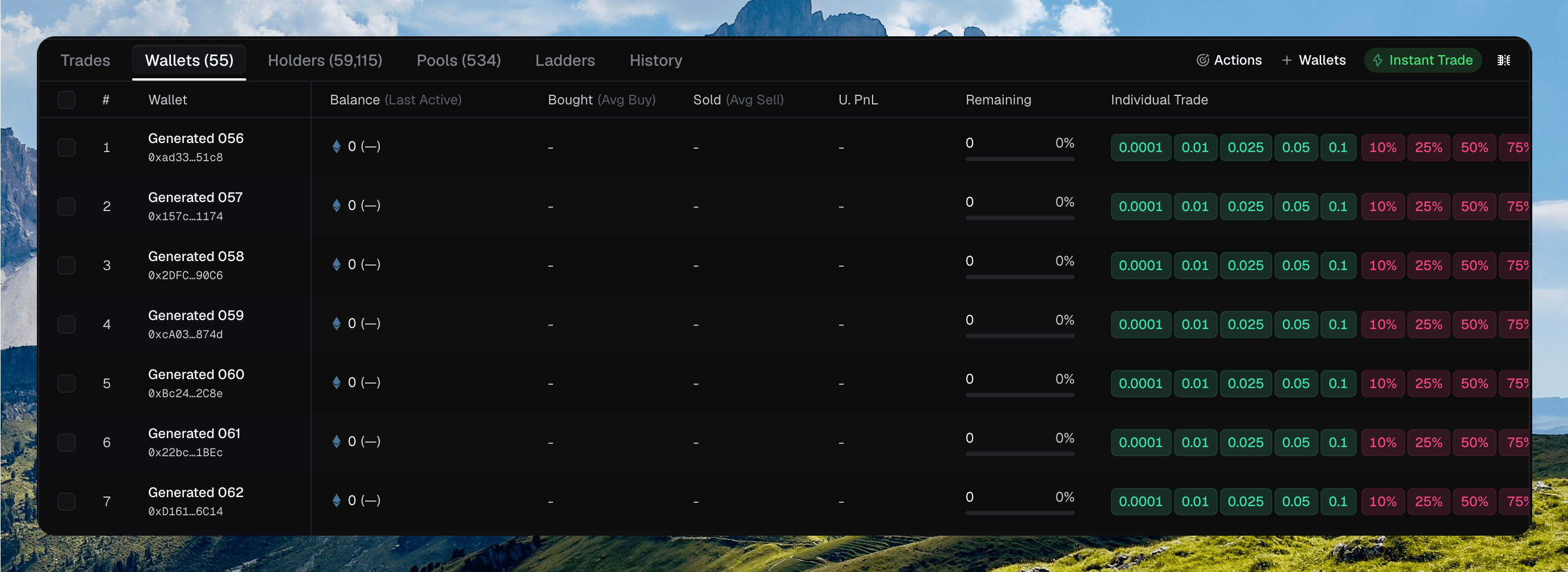
**Wallets** lists the wallets attached to this token. This is where [quick-trade chips](/trading/quick-trade) live.
The toolbar has **Actions**, **Wallets** (add), **Instant Trade**, **Pop out wallets**, and **Split View**.
| Column | What it shows |
| --------------------- | -------------------------------- |
| **Wallet** | Name and kind. |
| **Balance** | Native and token balances. |
| **Bought** / **Sold** | Position totals and averages. |
| **U. PnL** | Unrealized profit and loss. |
| **Remaining** | Tokens left. |
| **Individual Trade** | Buy and sell chips for that row. |
| **Funding** | Who last funded the wallet. |
Press **P** to show this tab.
## Wallets panel
**Wallets** lists the wallets attached to this token. This is where [quick-trade chips](/trading/quick-trade) live.
The toolbar has **Actions**, **Wallets** (add), **Instant Trade**, **Pop out wallets**, and **Split View**.
| Column | What it shows |
| --------------------- | -------------------------------- |
| **Wallet** | Name and kind. |
| **Balance** | Native and token balances. |
| **Bought** / **Sold** | Position totals and averages. |
| **U. PnL** | Unrealized profit and loss. |
| **Remaining** | Tokens left. |
| **Individual Trade** | Buy and sell chips for that row. |
| **Funding** | Who last funded the wallet. |
 **Add wallets** attaches wallets or whole folders to this token and pool. The first wallet creates the dashboard. **Unattach from token** removes a wallet from the dashboard. It does not archive the wallet.
### Pop out wallets
Click the square-with-up-right-arrow button after **Instant Trade** to open the Wallets panel in a separate window. Move that window to a second monitor to keep wallet management visible while you use the full token page elsewhere.
**Add wallets** attaches wallets or whole folders to this token and pool. The first wallet creates the dashboard. **Unattach from token** removes a wallet from the dashboard. It does not archive the wallet.
### Pop out wallets
Click the square-with-up-right-arrow button after **Instant Trade** to open the Wallets panel in a separate window. Move that window to a second monitor to keep wallet management visible while you use the full token page elsewhere.
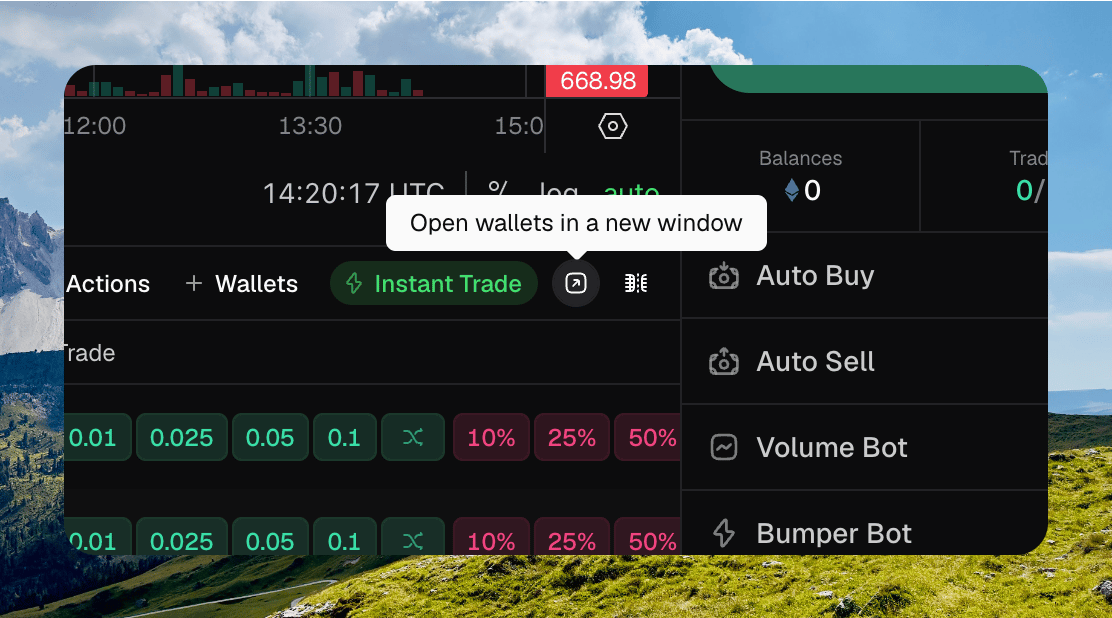 The pop-out keeps the token header and the complete Wallets panel. You can select wallets, add or unattach them, run wallet actions, and use quick-trade chips. Wallet changes refresh in both windows automatically.
Click **Split View** after **Instant Trade** inside the pop-out to divide the wallet list into two side-by-side tables. Each table shows a different wallet range and scrolls independently. Drag the divider to give either table more width.
Select-all applies to the wallet range in that table. The **Actions** count combines selections from both tables, so you can select wallets on either side before running an action. The pop-out remembers its split setting on this device without changing the regular token-page split view.
If your browser opens the pop-out as a tab, drag that tab out into its own window before moving it to another monitor.
Press **W** to show this tab.
## History
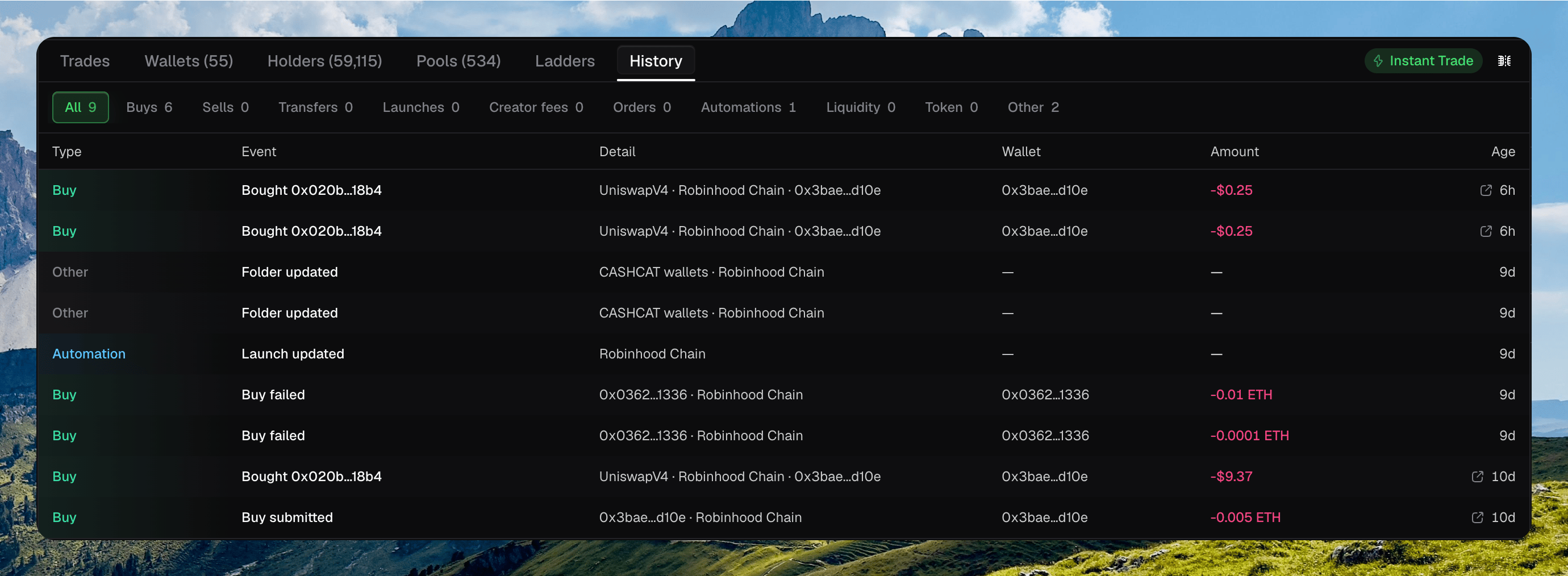
**History** is your activity on this token: buys, sells, transfers, launches, creator fees, automations, and more.
Filter chips sit above the table: **All**, **Buys**, **Sells**, **Transfers**, **Launches**, **Creator fees**, and the rest.
The pop-out keeps the token header and the complete Wallets panel. You can select wallets, add or unattach them, run wallet actions, and use quick-trade chips. Wallet changes refresh in both windows automatically.
Click **Split View** after **Instant Trade** inside the pop-out to divide the wallet list into two side-by-side tables. Each table shows a different wallet range and scrolls independently. Drag the divider to give either table more width.
Select-all applies to the wallet range in that table. The **Actions** count combines selections from both tables, so you can select wallets on either side before running an action. The pop-out remembers its split setting on this device without changing the regular token-page split view.
If your browser opens the pop-out as a tab, drag that tab out into its own window before moving it to another monitor.
Press **W** to show this tab.
## History
**History** is your activity on this token: buys, sells, transfers, launches, creator fees, automations, and more.
Filter chips sit above the table: **All**, **Buys**, **Sells**, **Transfers**, **Launches**, **Creator fees**, and the rest.
 Press **H** to show this tab.
## Token switcher
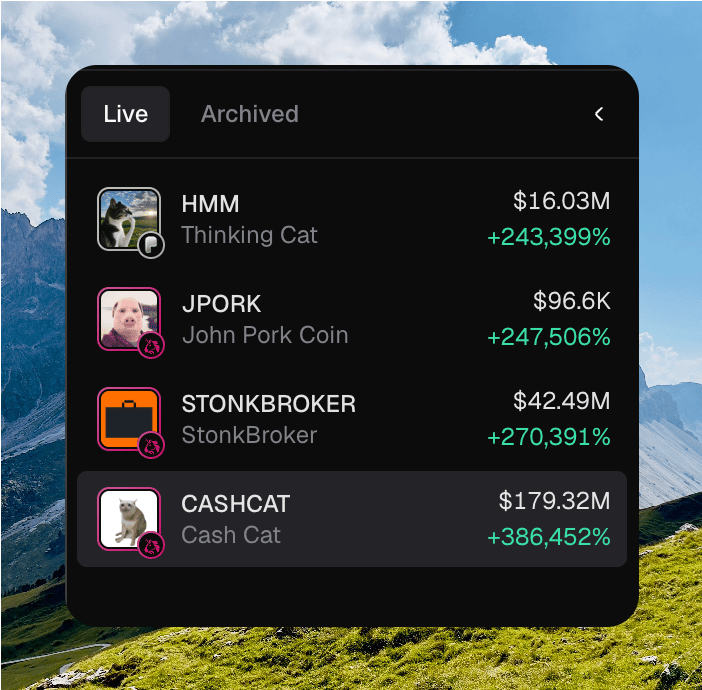
The left rail lists your token dashboards so you can move without going back to [Tokens](/trading/tokens). It stays empty until you add a wallet on a token page.
It starts collapsed. Click the chevron, or press **⌘ B**, to expand it. Press **\[** and **]** for the previous and next token.
Each row shows ticker, name, market cap, and 24h change. Right-click for **Copy address**, **Open explorer**, and **Archive**.
**Live** and **Archived** switch the list. **Create token** starts a [launch](/launch/launch).
Press **H** to show this tab.
## Token switcher
The left rail lists your token dashboards so you can move without going back to [Tokens](/trading/tokens). It stays empty until you add a wallet on a token page.
It starts collapsed. Click the chevron, or press **⌘ B**, to expand it. Press **\[** and **]** for the previous and next token.
Each row shows ticker, name, market cap, and 24h change. Right-click for **Copy address**, **Open explorer**, and **Archive**.
**Live** and **Archived** switch the list. **Create token** starts a [launch](/launch/launch).
 See [Keyboard shortcuts](/platform/keyboard-shortcuts#token-page) for the rest of the keys on this page.
## Where to go next
Place a buy or sell.
Buy and sell from a wallet row.
Attach a strategy to this token.
Sidebar PnL, U. PnL, and Share PnL.
See [Keyboard shortcuts](/platform/keyboard-shortcuts#token-page) for the rest of the keys on this page.
## Where to go next
Place a buy or sell.
Buy and sell from a wallet row.
Attach a strategy to this token.
Sidebar PnL, U. PnL, and Share PnL.